Interface Skins
Choose how AstroApp looks: 18 color schemes, a skin for phones and tablets, and your own page background.
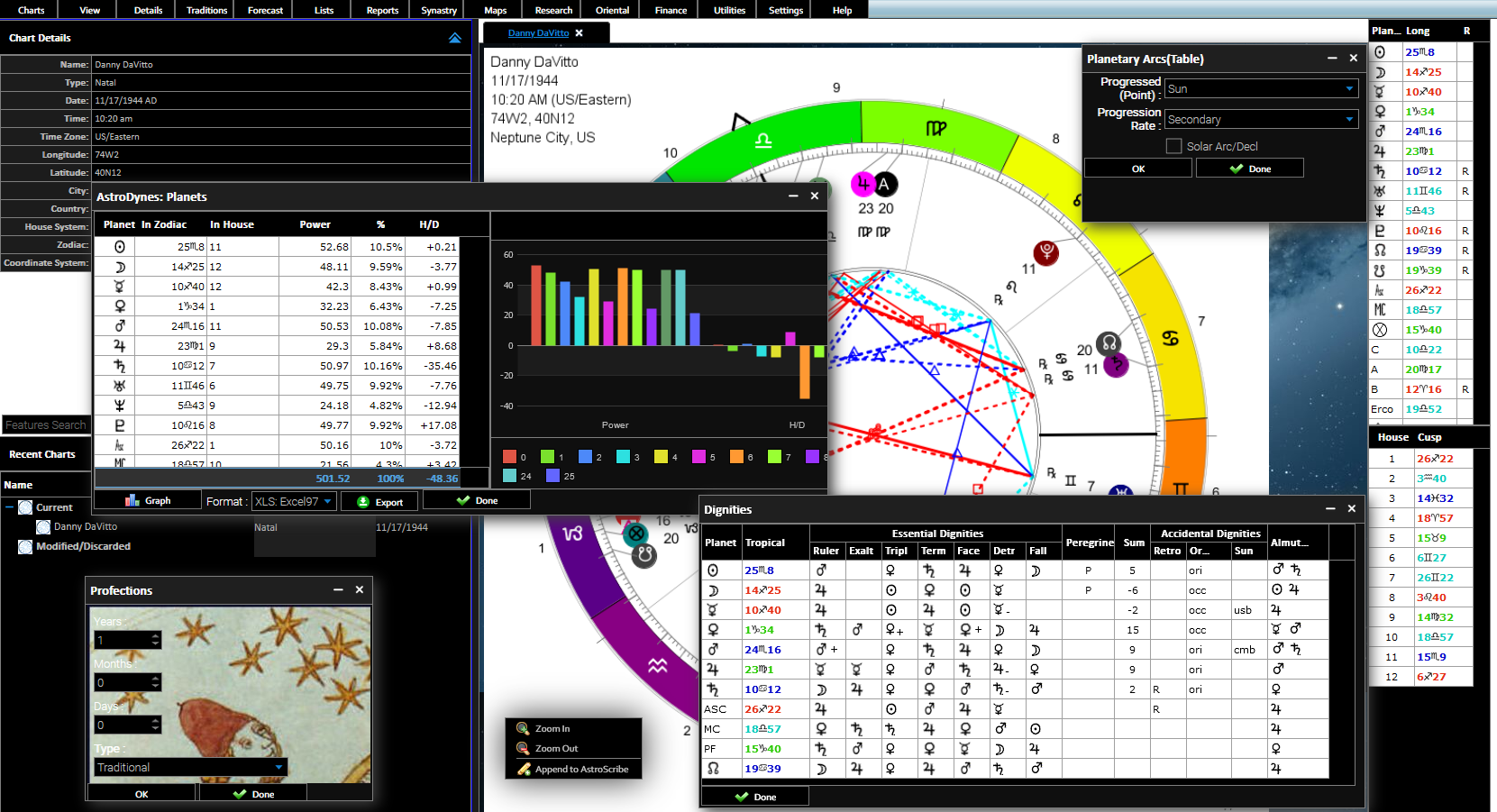
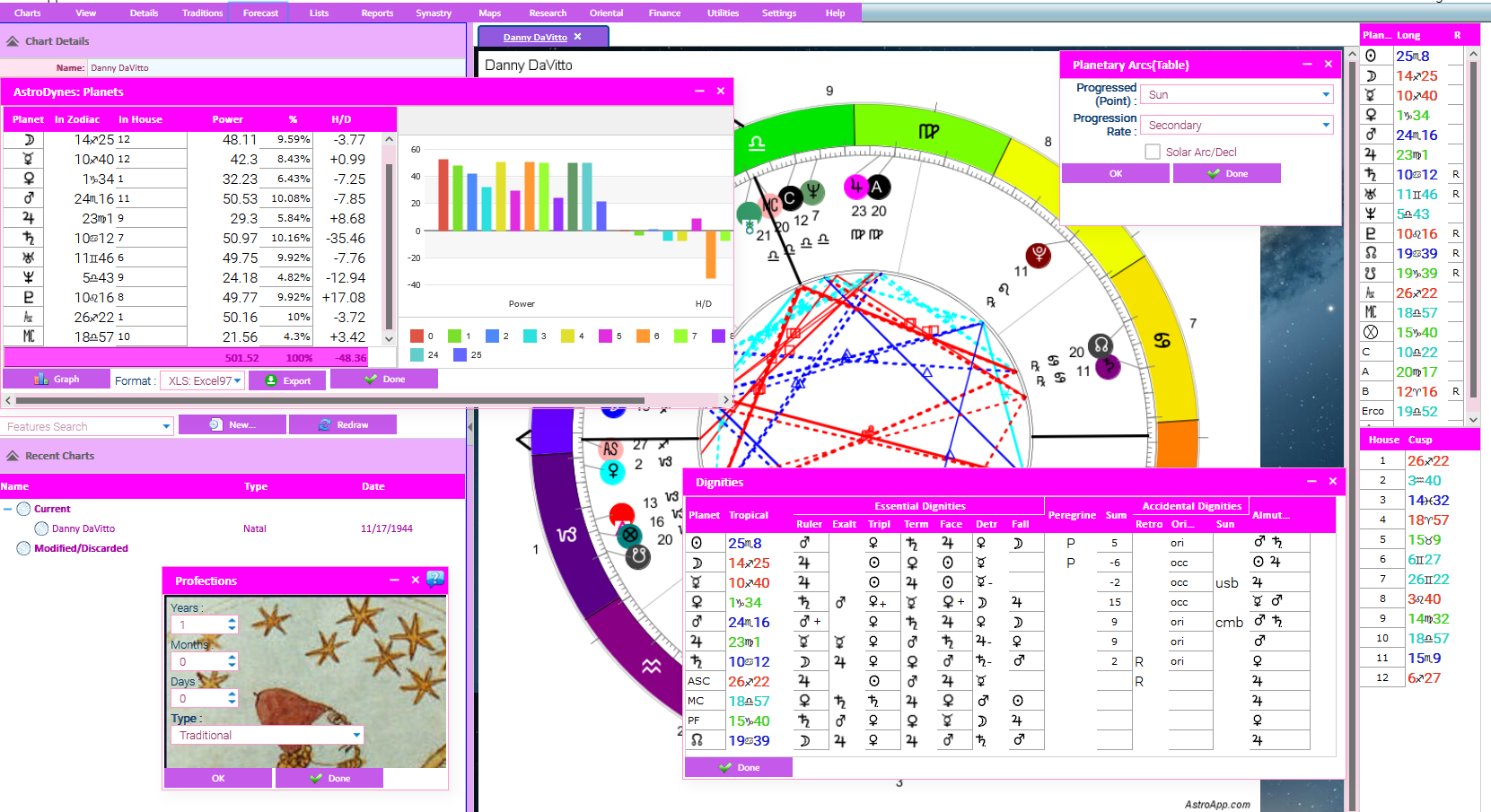
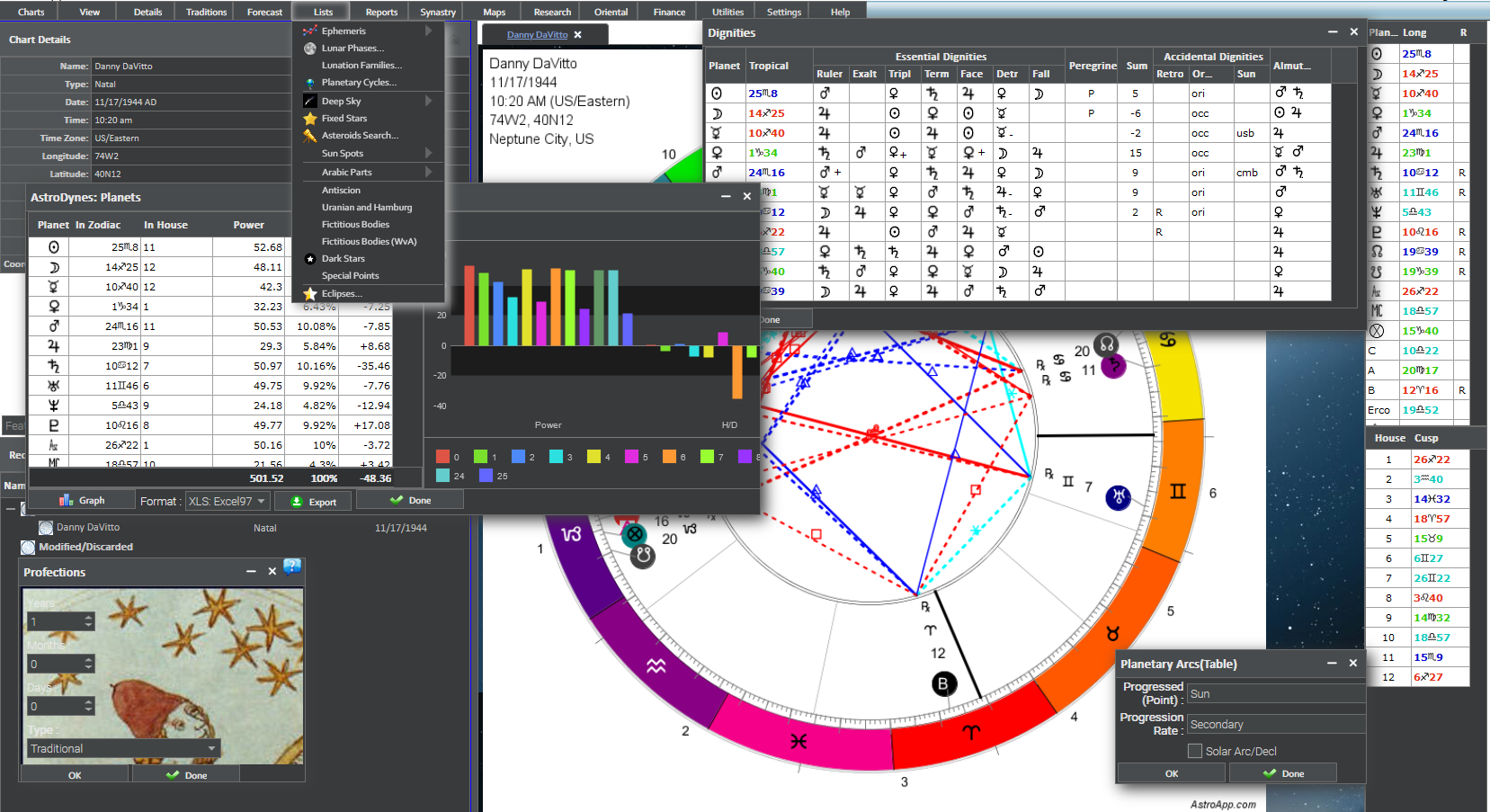
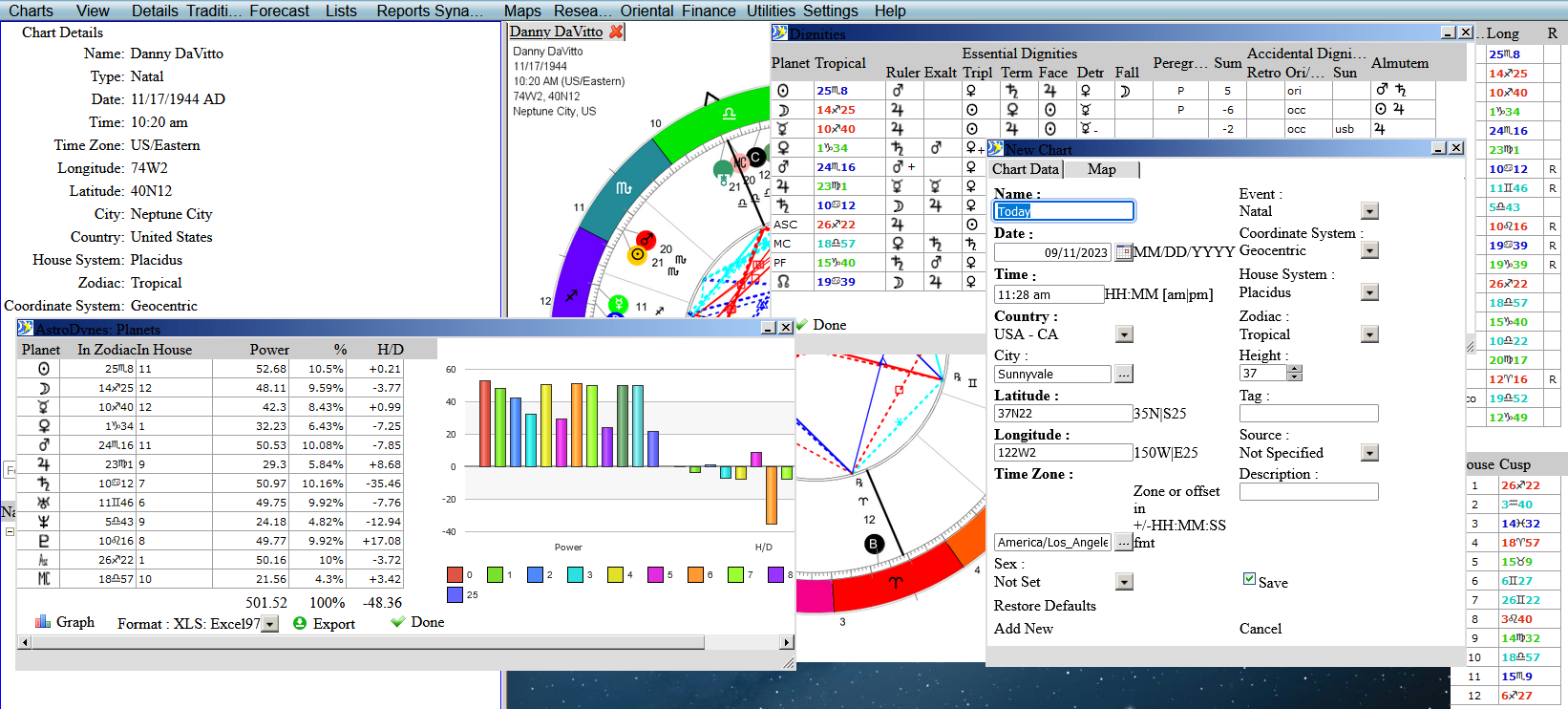
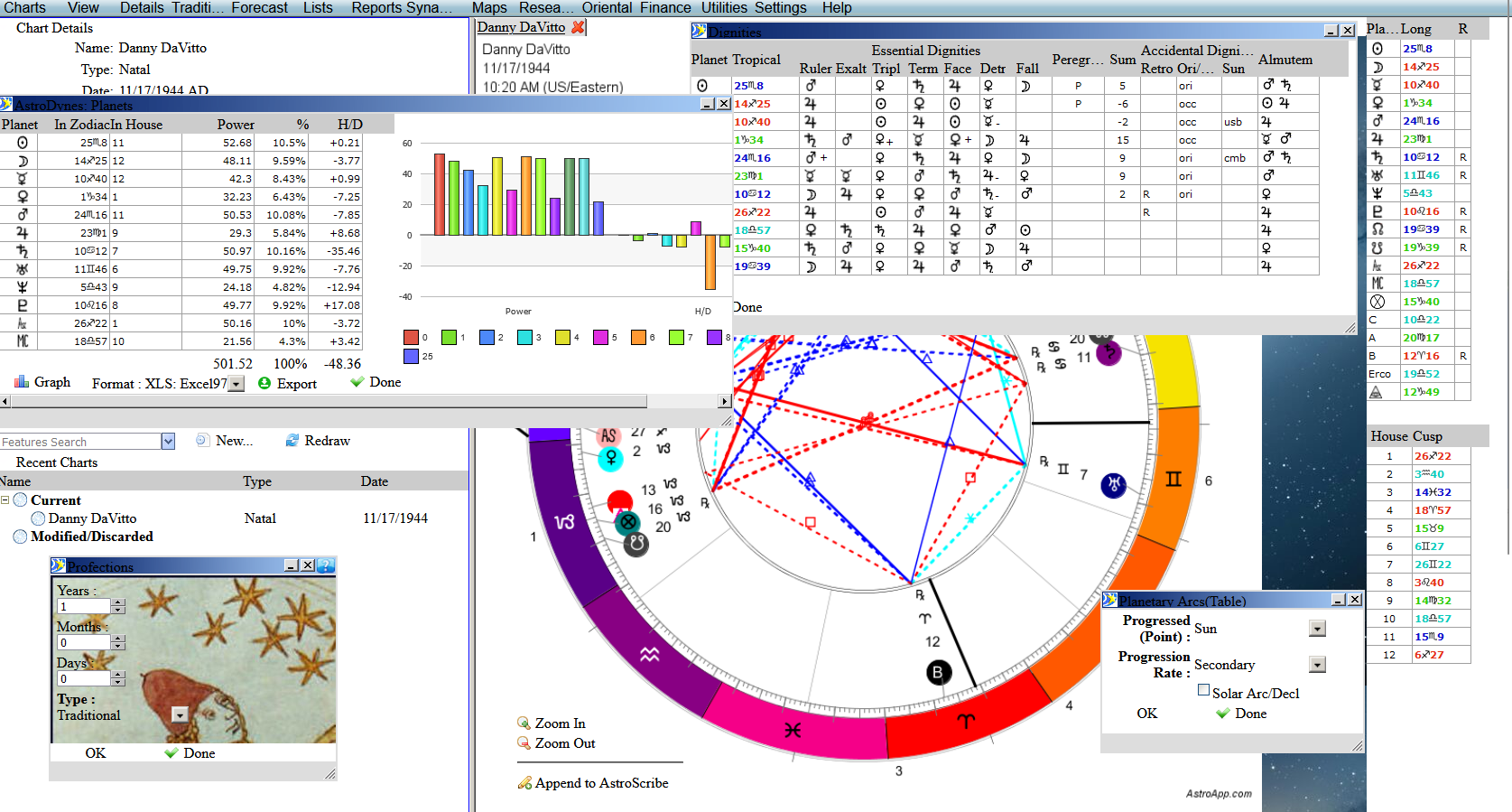
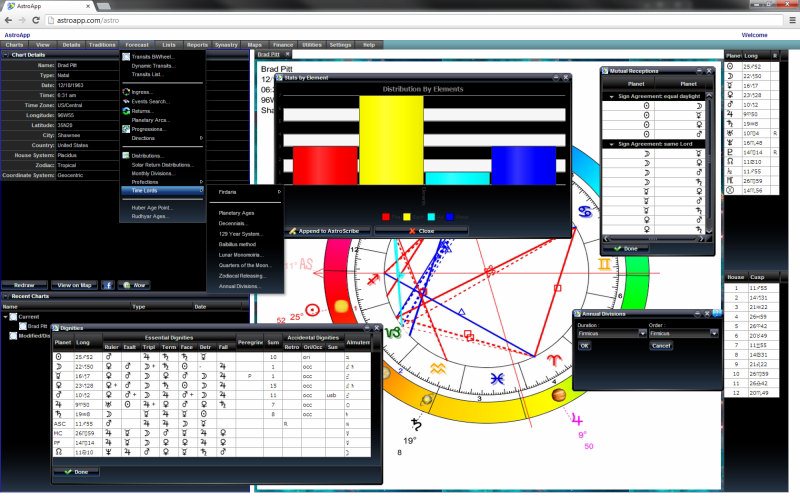
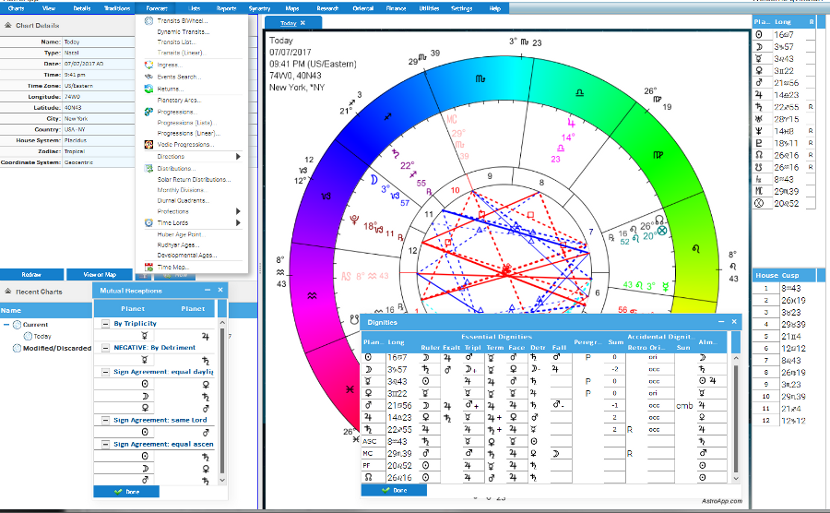
You can choose how AstroApp looks. The 18 skins change the colors of the menus, panels and tables, from dark schemes such as Dark Matter, Obsidian and Twilight to light ones such as Light Silver, Simplicity and Winter, and you can preview each one in your settings before you choose it. A skin designed for phones and tablets is included too, and you can add your own page background to any skin.
The Skins
- Default, Basic Gray, Gray, Graphite and Light Silver
- Dark Matter, Obsidian, Twilight and Magenta
- Cascade, Stratus, Shiva and Tahoe
- Light Blue, Sea, Silver Wave, Simplicity and Winter
Page Backgrounds
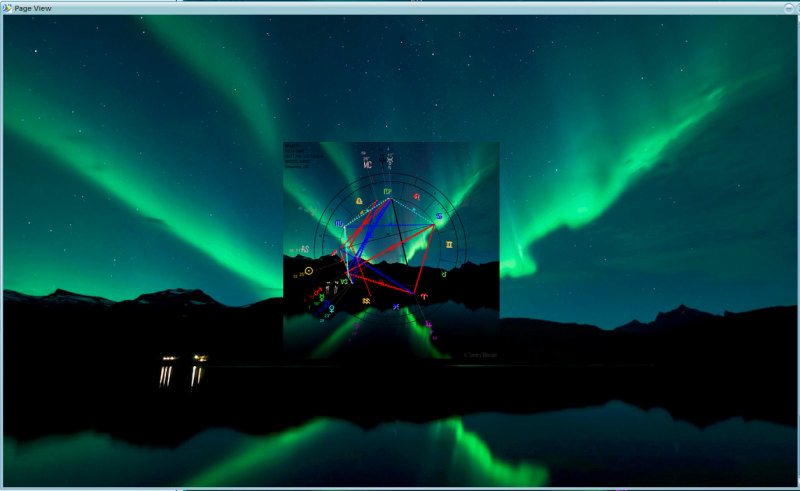
You can use your own picture or photograph as the background of the whole screen, with any skin. You can also use it as the background of a chart, or of a page you create in the Page Designer.
The Mobile Skin
The mobile skin is designed for phones and tablets, with inline forms and a hamburger menu, and AstroApp switches to it automatically on a small screen. You can also choose it on a desktop or laptop. You can learn more about it in Astrology Software on Your Phone and Tablet.
Frequently Asked Questions
How do I change the skin?
Choose it in your settings, where you can preview every skin before you apply it.
Is there a dark skin?
Yes, several, including Dark Matter, Obsidian and Twilight.
Can I use my own background?
Yes. You can use your own picture as the background of the screen, of a chart, or of a page you create in the Page Designer.